Screen readers: how blind people use the internet
A screen reader reads out the content of a screen and a website or outputs it on a braille display. For blind and severely visually impaired people, it is the most important tool on the web. Learn how screen readers work, which programs are common and what matters for your website.
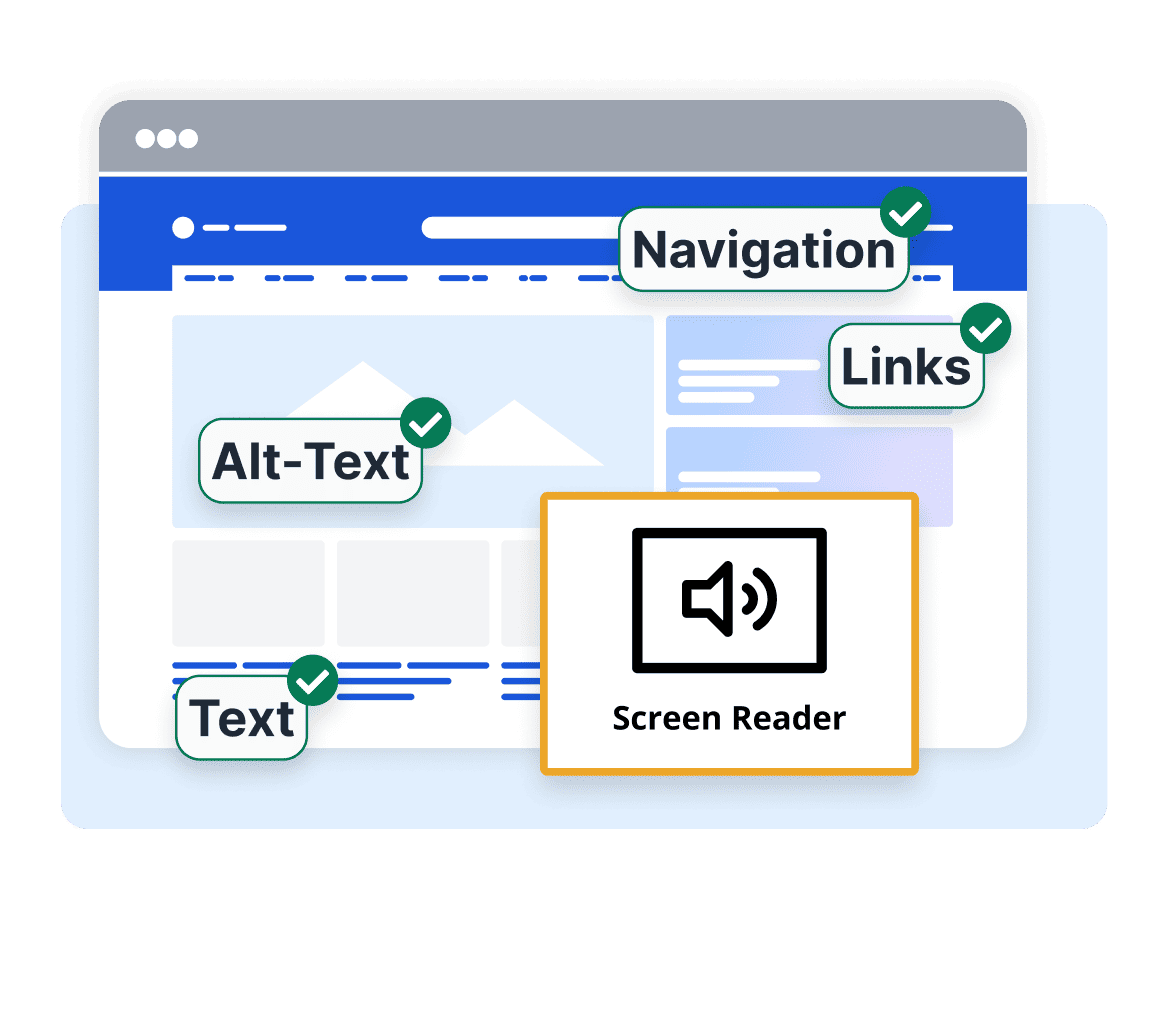
The key facts at a glance
Screen readers – the key facts
Screen readers make digital content audible or tactile. These four points sum up what you should know.
-
 Converts text and controls into speech or braille
-
Common: JAWS, NVDA, VoiceOver, TalkBack and Narrator
-
Users mostly jump through a page by headings
-
Works well only if code and content are marked up correctly
 About 68% navigate by headings
NVDA, VoiceOver and Narrator are free
Basis: WCAG 1.1.1, 1.3.1 and 4.1.2
A first test needs no expert knowledge
What is a screen reader?
A screen reader is software that interprets the content and controls of an interface and outputs them as synthetic speech. Alternatively or in addition, it drives a braille display on which the text can be read by touch. Screen readers are almost always operated with the keyboard, on smartphones with swipe gestures.
On websites, the screen reader does not read the image you see but the HTML code. The browser turns it into the so-called accessibility tree: a list of all elements with name, role and state, such as “link, Pricing” or “button, menu, collapsed”. If this information is missing, users only hear “button” or nothing at all.
Screen readers are not only used by blind people. People with low vision, dyslexia or cognitive impairments also have texts read aloud. We present further aids under assistive technologies.
The most common screen readers
According to WebAIM’s Screen Reader User Survey (July to August 2026, 1,780 responses), 55% use JAWS and 32.9% use NVDA as their primary desktop screen reader. On smartphones and tablets, 72.2% use VoiceOver (multiple answers possible).
-
JAWS (Windows): paid, the most used on desktop
-
NVDA (Windows): free and open source, developed by NV Access
-
VoiceOver (macOS, iOS): built into all Apple devices
-
TalkBack (Android) and Narrator (Windows): built into the operating system
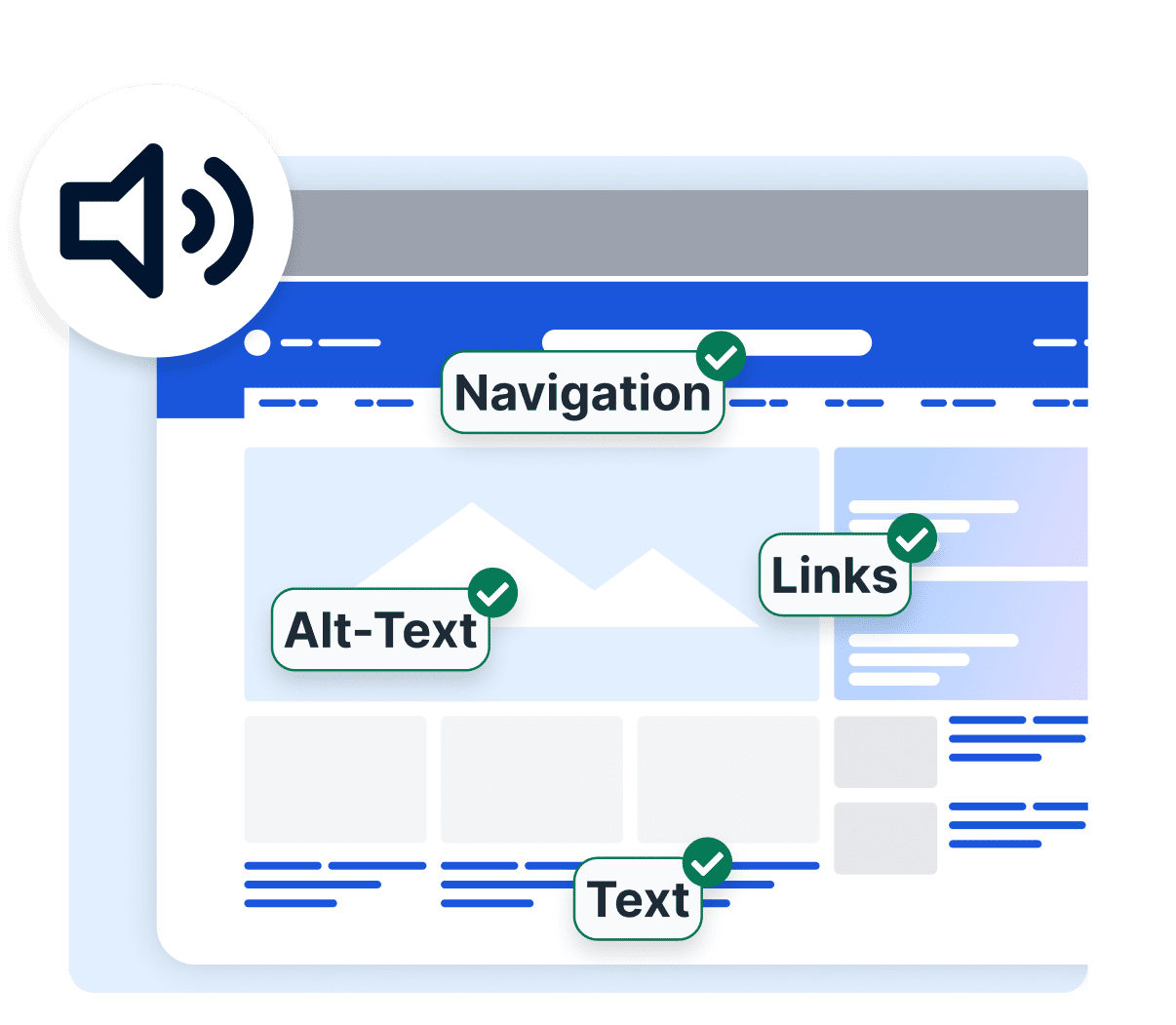
How screen reader users navigate a website
Screen reader users rarely read a page from top to bottom. They jump to specific elements. For this to work, these elements must be marked up correctly in the code.
Headings
With a single key (“H” in NVDA and JAWS), users jump from heading to heading. 67.8% look for information on long pages this way first. A clean hierarchy from H1 to H3 is therefore essential (WCAG 1.3.1, 2.4.6).
Links
Many users list all links on a page. “Click here” or “More” are useless there. Link texts must make sense on their own (WCAG 2.4.4).
Forms
Every input field needs a visible label linked in the code. Error messages must be announced, otherwise an order silently gets stuck (WCAG 1.3.1, 3.3.1, 3.3.2).
Images
Informative images need alt text, decorative images an empty alt attribute so that the screen reader skips them (WCAG 1.1.1).
Common errors that slow screen readers down
The WebAIM Million 2026 found automatically detectable WCAG failures on 95.9% of the one million most visited home pages. Many of them affect screen reader users directly:
-
Images without alt text or with the file name as text
-
Buttons and icons without an accessible name
-
Form fields without a label
-
Headings styled only visually, not marked up as H1 to H6
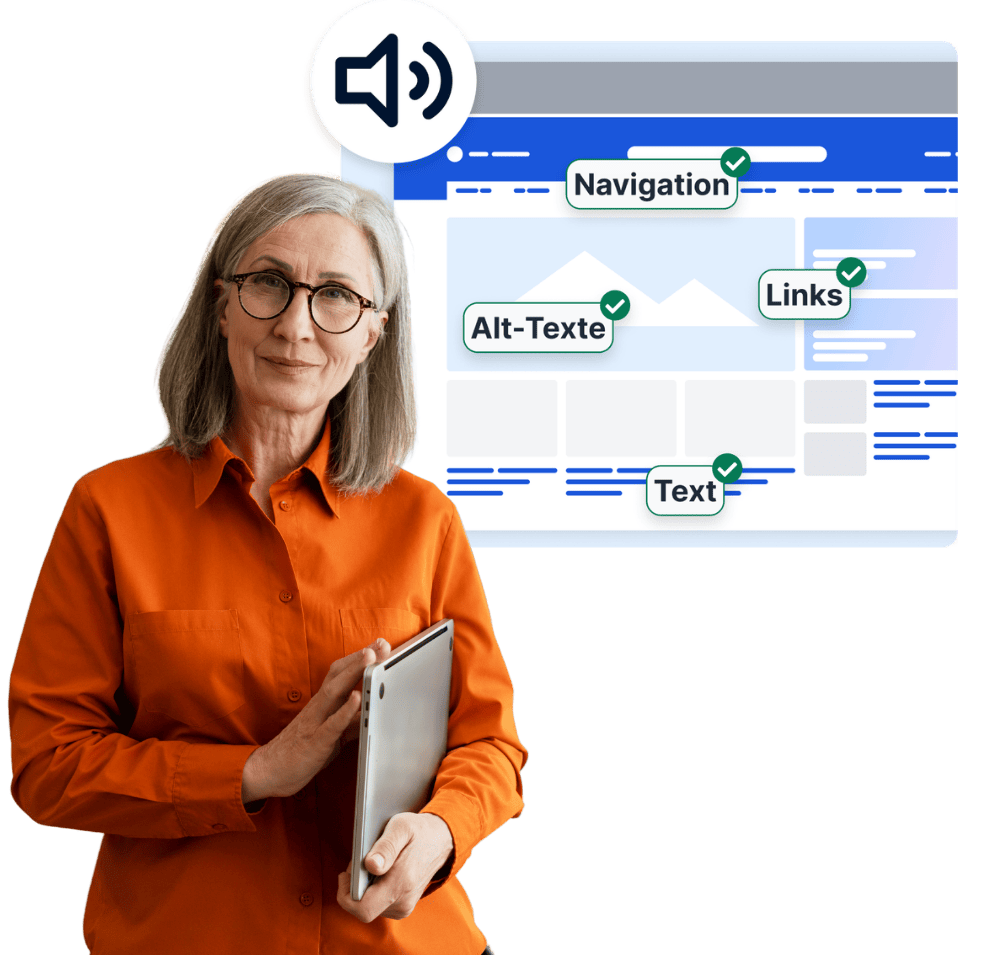
How to test your website with a screen reader
A first test needs no expert knowledge. On Windows, install the free NVDA and open your website in Firefox or Chrome. On a Mac, start VoiceOver with Command + F5. Then turn off the screen and try to complete a typical task, such as adding a product to the cart.
-
Automated: missing alt texts, labels, names and roles
-
Manual: reading order, clarity, error messages
-
Best of all both, regularly and after every release
Check whether every element is announced meaningfully, whether the order is logical and whether you notice error messages. The elements list (NVDA: Insert + F7) or the rotor (VoiceOver: Ctrl + Option + U) shows whether headings and links hold up.
Automated checks complement the test: easyMonitoring finds missing alt texts, labels and names on all pages. With easyAudit you check the points only a human can assess.
Frequently asked questions about screen readers
How accessible is your website?
Test your website for free with our Live Check, no registration required.