Common Web Accessibility Barriers and How to Fix Them
Many websites and digital products unintentionally exclude people with disabilities: through missing alt text, poor keyboard operability, or weak color contrast. We show you the most common barriers in web design, real-world examples, and how companies can make them accessible with manageable effort.
The Key Facts at a Glance
Common Barriers at a Glance
These four points summarize which barriers occur most often and how to tackle them.
-
 Eight of the most common barriers involve images, keyboard access, contrast, video, language, structure, forms, and click targets
-
Barriers fall into four categories: visual, motor, cognitive, and auditory
-
Most barriers can be fixed with manageable effort
-
Combining automated testing with manual review reliably catches most issues
 Automated tests detect technical barriers in seconds
Every barrier here comes with a concrete example and fix
WCAG-compliant and BFSG-relevant
Automated tests detect technical barriers in seconds
Every barrier here comes with a concrete example and fix
WCAG-compliant and BFSG-relevant
The Most Common Barriers: Real Examples and Solutions
People with disabilities encounter these barriers daily on websites, in apps, and when using digital services. For each barrier, we show a concrete example and the matching solution per WCAG requirements.
Missing Alt Text for Images
Product images without an alt attribute: screen readers read out the filename instead, e.g. "IMG_4521.jpg" – the content stays inaccessible. Fix: precise alt text for every informative image.
Generate Alt Text AutomaticallyMissing Keyboard Operability
A menu or form that only works with a mouse leaves keyboard users stuck. Fix: make every interactive element reachable via Tab and operable with Enter.
Check Keyboard AccessibilityInsufficient Color Contrast
Light gray text on a white background is hard to read for people with low vision. WCAG requires at least 4.5:1. Fix: systematically check and adjust contrast.
Go to the Contrast CheckerVideos Without Captions
Product videos without captions completely exclude deaf and hard-of-hearing users. Fix: synchronized captions and transcripts for every video.
Learn MoreMissing Language Declaration
Without a lang attribute, screen readers pronounce text incorrectly. Fix: set the lang attribute correctly, e.g. lang="en".
Check Language DeclarationUnclear Structure and Heading Hierarchy
H3 headings used purely as a style choice, with no real hierarchy, block screen reader navigation. Fix: maintain a consistent, semantic heading hierarchy.
Check StructureInaccessible Forms
Input fields without labels mean screen readers can't tell users what to enter. Fix: give every field a proper label and accessible error messages.
Test AccessibilityClick Targets Too Small
Buttons under 44×44 pixels are hard to hit for users with motor impairments. Fix: consistently enlarge click targets in your design.
Learn MoreFour Types of Barriers and Who They Affect
Digital barriers arise when content, elements, or the design of an online offering isn't accessible to all users. WCAG requirements distinguish four fundamental categories of limitations that web design needs to account for.
Visual
Blind and low-vision people use screen readers or magnification software. Barriers arise from missing alt text, insufficient contrast, or purely visual information.
Motor
People with motor impairments navigate by keyboard or voice input. Websites without full keyboard operability or with small click targets exclude these users.
Cognitive
People with cognitive disabilities need clear language, simple structures, and consistent navigation. Complex text and cluttered layouts act as barriers.
Auditory
Deaf and hard-of-hearing people rely on captions, transcripts, and visual alternatives. Videos without captions are a direct barrier.
Spotting Barriers: How to Test Your Website
Many barriers are invisible during normal browsing – they only show up when users access an offering with a screen reader, keyboard, or other assistive technology. For a complete review against WCAG requirements, a combination of automated testing and manual review is recommended.
-
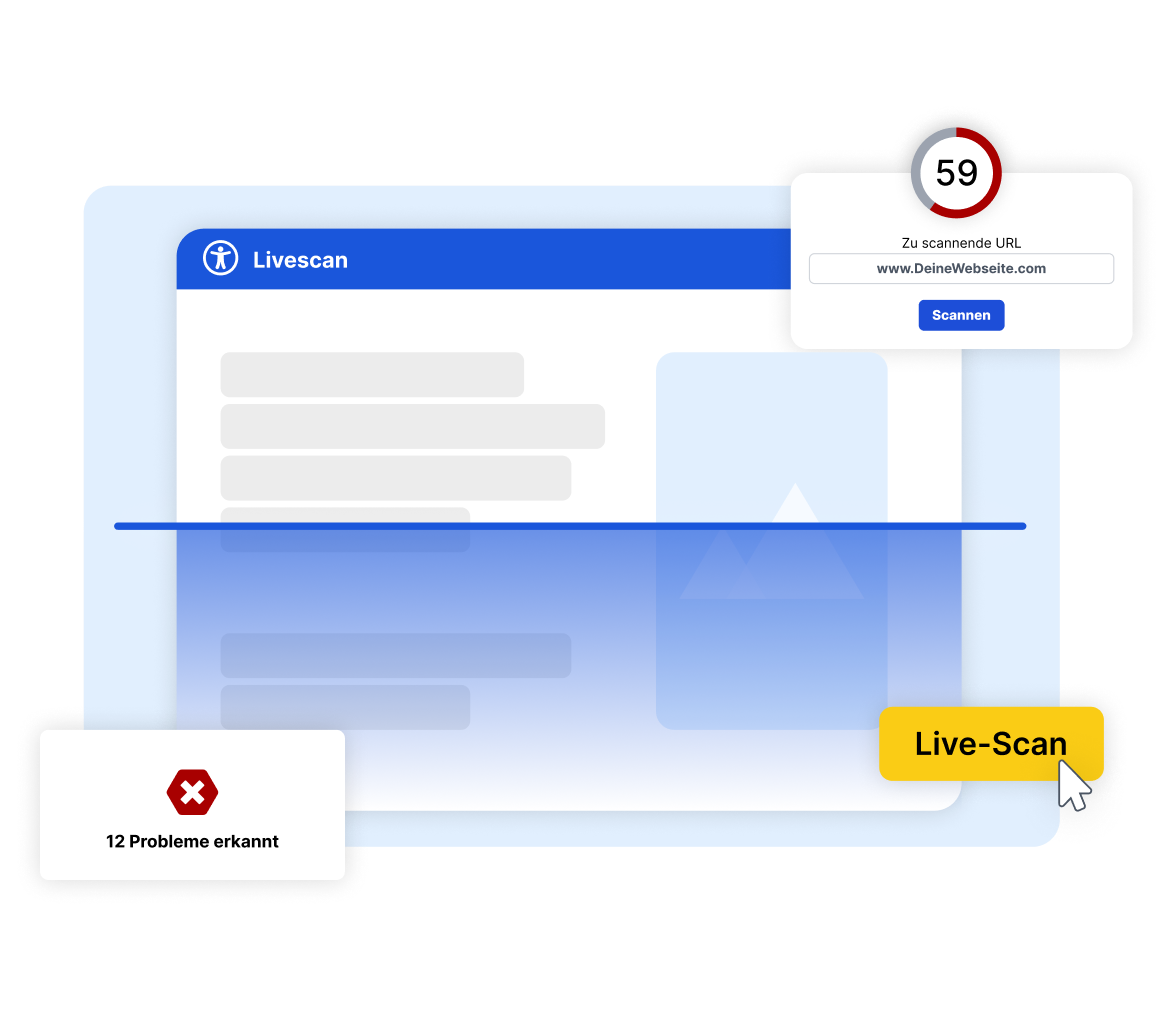
Automated check: tools like easyMonitoring reliably and quickly detect technical barriers in structure, content, and elements
-
Keyboard test: navigate your entire website using only the keyboard – no mouse
-
Screen reader test: test with NVDA or VoiceOver to see whether all content is read out correctly
-
Contrast check: review every color combination for sufficient contrast
-
Manual review: some WCAG criteria, such as text clarity, can only be assessed manually
Accessibility in Web Design: What the Law Requires
Accessibility isn't optional – it has been a legal requirement for B2C companies since 28 June 2025. The Accessibility Strengthening Act (BFSG) requires digital products and services to be designed according to WCAG standards and accessible to all users. Inclusion is therefore not just an ethical commitment, but a legal one too.
-
WCAG 2.1 Level AA: the binding standard for websites, apps, and digital content
-
The four core principles – perceivable, operable, understandable, and robust – serve as the technical benchmark

Frequently Asked Questions About Barriers and Fixing Them
According to regular web accessibility studies, the most common barriers include: missing alt text for images, insufficient color contrast, missing keyboard operability, inaccessible form fields without labels, and videos without captions. These barriers affect millions of people with disabilities every day and can be fixed efficiently with targeted measures and the right tools.