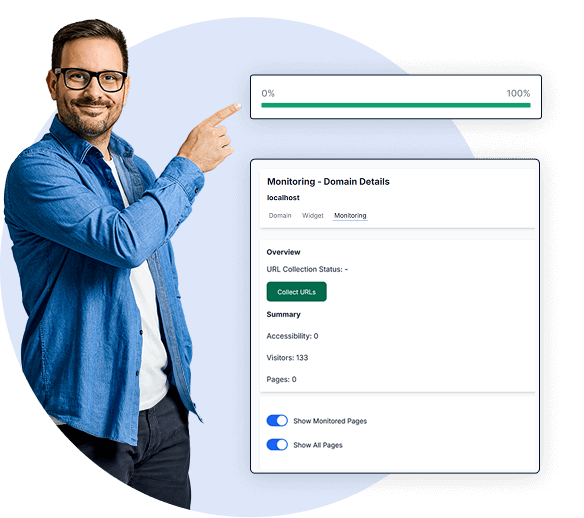
The autopilot for your accessibility—once activated, permanently optimized
Seven automatic fixes that resolve common WCAG barriers directly in the frontend. No code changes, no visible widget, and a measurable boost for your accessibility score. Once activated, the auto-correction runs permanently in the background.
What is auto-correction and how does it work?
Auto-correction is a feature within the easyVision widget settings. It intervenes directly in the frontend of your website—where your users see the page—and automatically fixes common technical accessibility issues without requiring any changes to your website's source code.
The principle: SiteCockpit analyzes the existing HTML elements every time a page is loaded. Where barriers are detected, the auto-correction steps in, addressing everything from missing alt attributes and missing labels for input fields to skip navigation for keyboard users. A total of seven corrections are currently available, which can be activated individually and monitored at any time.
Good to know: Auto-correction is part of easyVision, but the widget does not have to be visible on your website for the corrections to take effect. This means you can use the automatic fixes even if you do not want to offer a frontend widget to your users. Auto-correction complements your existing code; it does not overwrite it.
 Set up once, permanently active in the background
Seven WCAG corrections automatically in the frontend
Immediate boost for your technical accessibility score
Works even without a visible easyVision widget
Set up once, permanently active in the background
Seven WCAG corrections automatically in the frontend
Immediate boost for your technical accessibility score
Works even without a visible easyVision widget
What auto-correction fixes automatically
Seven corrections, grouped by impact. Each addresses a specific WCAG criterion and takes effect immediately when your website loads. Can be activated individually or collectively, and deactivated at any time.
Visual Accessibility
For visually impaired users
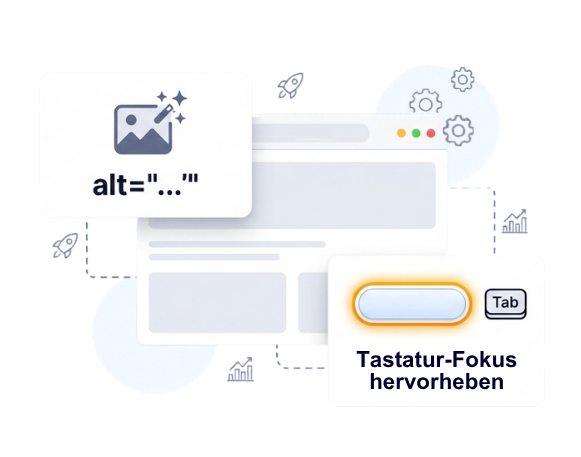
Highlight keyboard focus
Enforces a custom CSS style for focused elements so that the keyboard focus is clearly visible at all times. The contrast colors from your widget configuration are used.
WCAG 2.4.7 Focus Visible (Level AA)Underline all links
Forces a custom CSS style for all link elements so that links are distinguishable from body text not just by color, but also by underlining.
WCAG 1.4.1 Use of Color (Level A)Keyboard and Navigation
For users with motor impairments
Add skip navigation
Adds an element, where possible, that allows keyboard users to skip repetitive navigation blocks and jump directly to the main or H1 element.
WCAG 2.4.1 Bypass Blocks (Level A)Label links opening in new tabs
Adds an aria-label for links that open in a new tab, so that users are informed in advance about the expected behavior.
WCAG 3.2.2 On Input (Level A)Focus index adjustment via CSS
Ensures that all interactive elements can be navigated by keyboard in a logical, predictable order, even with negative or missing tabindexes.
WCAG 2.4.3 Focus Order (Level A)Screen Readers & Assistive Tech
For blind and cognitively impaired users
Set missing alt attributes
Sets an empty alt attribute for images without one, so screen readers treat the image correctly as decorative. Combined with easyAlt, AI-based descriptions are inserted.
WCAG 1.1.1 Non-text Content (Level A)Label input fields
Adds an aria-label for input fields that lack a label. The placeholder text is used as a substitute label so that screen reader users can understand the purpose of the field.
WCAG 3.3.2 Labels or Instructions (Level A)Continuous Expansion: Auto-correction is constantly being expanded to include more automatically fixable barriers. You can see which corrections are active at any time in your easyVision settings in the SiteCockpit dashboard.
Three promises, one result
A measurably better accessibility score, immediately and without technical effort.
7
Automatic Corrections
Seven WCAG fixes that automatically take effect in the background
0
Lines of Code
No source code changes, no developers, no technical hurdles
+
Instant Score Boost
Measurably better accessibility score, visible from the first scan
Activated in three steps
No programming knowledge required, no intervention in the code. The only requirement is the integration of easyVision on your website, either visible or invisible.
1. Select domain
Open the SiteCockpit dashboard and select the domain for which you want to activate auto-correction.
To the dashboard2. Open auto-correction
Go to the "Automatic Optimization" section in the easyVision settings. There you will find an overview of all seven corrections.
easyVision settings3. Activate corrections
Activate the desired corrections individually or collectively, save, and you're done. From this moment on, the auto-correction runs permanently in the background.
Tip: Combine with easyAltWhat auto-correction can and cannot do
Auto-correction is a powerful tool for a quick accessibility boost, but it is not a substitute for full WCAG compliance. Understanding its limits ensures the tool is used correctly and avoids false expectations.
-
What it can do: Fix common, automatically detectable barriers in the frontend immediately, without source code changes and without developers.
-
What it can do: Measurably improve the accessibility score in easyMonitoring, especially for websites with many images, unlabeled links, or missing labels.
-
What it cannot do: Fix structural barriers such as incorrect HTML semantics, faulty ARIA attributes, or complex keyboard issues in the code.
-
What it cannot do: Establish full WCAG compliance. It is a supplement and not a complete replacement for technical implementation.
-
What it cannot do: Replace manual testing. Criteria such as the understandability of text or screen reader behavior still require human judgment.